


 English (UK)
  Русский
  العربية
  日本語
日本語  한국어
한국어  Magyar
  Türkçe
  Español
  Čeština
  Svenska
  Português
  Ελληνικά
  Suomi
Suomi  Nederlands
  Română
  Italiano
  Français
  Polski
  Українська
  Deutsch
  简体中文
简体中文  Slovenčina

Place a clearly labeled toggle button at the start of the navigation and connect it with aria-expanded and aria-controls so users can open and close the menu using the keyboard. That control provides much predictability for mind and perspective, and it applies to every site. Patterns like this work across real-world contexts and layouts.
Use semantic elements and landmarks: wrap the nav region with a clear aria-label, and include a visible skip-to-content link so users can reach the main content quickly in a single tab sequence. Keep every item focusable and ensure the visible focus state is highly visible across devices.
Enable straightforward keyboard interactions: activate with Enter or Space, close with Escape, and use Arrow keys to move through menu items. These choices help users who rely on keyboards, screen readers, or touch devices to stay in control, especially in winter when quick access matters.
Provide a strong focus ring and maintain high contrast for all controls. Use consistent focus styles across light and dark themes. Keep animation minimal to avoid motion sensitivity issues for some visitors.
Test with real users, including those who rely on screen readers and those resizing text. Collect feedback on the speed and accuracy of opening, closing, and navigating the menu; aim for at least two rounds of testing with diverse devices. This approach grows much confidence from past rounds and helps you refine the flow across places and contexts.
Consider scenarios like marinas or other scenic places where users may run the site on a phone while standing in a line or renting gear. The menu should adapt to small screens, keep touch targets at least 44 by 44 px, and maintain focus order so a kayak-related rental pack can be reached without extra taps.
Keep a consistent pattern across the road map of your site so each part of the navigation behaves the same way. Document ARIA usage in your style guide and train teammates to implement updates without breaking assistive technology. A mindfully designed perspective yields a calmer experience as content expands or as the site evolves.
Practical Framework for Open and Close Menu Accessibility
Implement a single, clearly labeled toggle that opens and closes the menu, and expose its state to assistive technologies. Place this button at the start of the navigation region and bind aria-expanded to the panel’s visibility. This thing provides a reliable cue for states and supports both keyboard and screen reader users, and it takes minutes to wire up.
Define a compact framework with a toggle, a panel, and an accessible label. Use aria-controls to reference the panel, and keep the panel with a clear role appropriate for the site (menu or navigation). Ensure every focusable item has a logical order that matches the visual trails, so users enjoy predictable navigation.
Keyboard experience matters: Enter or Space toggles; Arrow keys move between items when the menu is open; Escape closes; Tab moves focus out of the region. When the panel opens, focus should land on the first item or a meaningful nearby item, helping an adventurous user catch the flow without extra steps.
Focus management and post-state behavior: trap focus while the panel is open, and return focus to the toggle after closing with a post-state update. If focus cannot be trapped due to a custom menu, provide a visible skip label and a fallback to the toggle.
Testing and real-world patterns: verify that states stay consistent when the user changes window size, orientation, or preferences. Ensure mouse and touch interactions mirror keyboard results. Keep the content located above the fold so it’s easy to spot, and offer a picnic of small, accessible items that map to the menu. This approach offers resilience across devices.
Example scenario across contexts: think of a site for outdoor trails and a Mohave campground. The toggle located at the top, near a natural overlook, posts an update on open. The panel includes items like spot, catch, fish, join, post, or picnic. Since users asked for clarity, you can implement either button or gesture, and this pattern has been tested with adventurous users in real spots, including boulder areas and pontoons docks.
This bible of best practices has been refined through real tests and user feedback, giving teams a clear baseline to join work across pages.
Keyboard-Only Activation and Focus Order
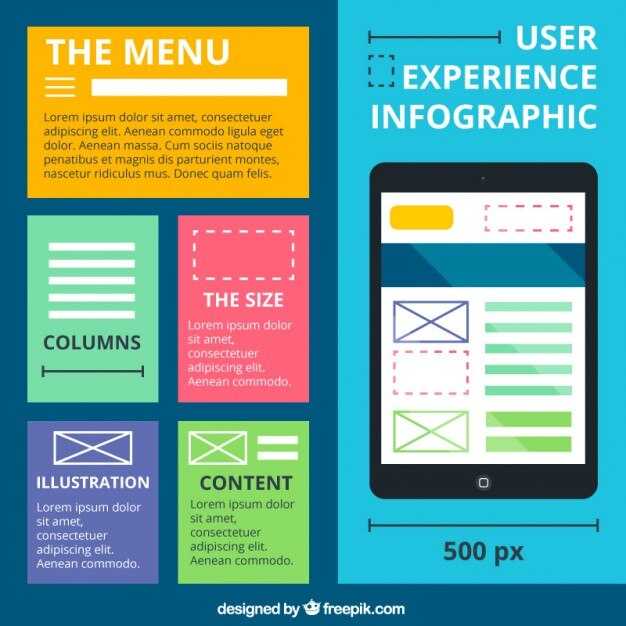
Place the menu toggle below the header and maintain a linear tab order: toggle, then each item in the visual sequence, then the Close control. If the menu closes, return focus to the toggle so users can resume with a single keystroke.
Make each item a real button or link and keep the DOM order stable. Only focusable elements receive focus, and a striped focus indicator helps scanning as you move through items. Avoid reflow that shifts items when the menu opens or closes; maintain a consistent order so returning users can pick up where they left off.
Define keyboard behaviors: Arrow Up/Down to move through items; Home/End jump to the first or last item; Enter or Space activates an item; Escape closes the menu. If the menu stays open, keep focus trapped inside it to prevent leakage to the page; after the last item, Tab moves you forward to the next page, and Shift+Tab from the first item moves you back into the menu.
Testing scenario: boating summers near a city lodge, boats drift by and shade cools the deck. The menu opens below the header with a striped focus frame, and users can move through items without muddy steps around boulders. alan tests the flow and notes that the sequence remains good and easily accessible. For some users, like alan, the pattern helps enjoy a quick meal nearby or a video break, without losing place. The personal aim is to support another user who wants a straightforward, nearby menu that works in outdoor settings.
ARIA Roles, States, and Live Feedback
Apply role=”navigation” to the main menu container and use a toggle with aria-expanded to reflect open or closed state. Also link the toggle to the panel with aria-controls, so ATs announce the change as soon as the user activates it.
- Use proper roles: role=”navigation” on the wrapper, role=”menu” for a list of commands, and role=”menuitem” for each item. For submenus, declare aria-haspopup=”true” and manage aria-expanded on the trigger.
- Update states with aria-expanded on the toggle; aria-selected or aria-checked for items that act like toggles; ensure the state is visible to ATs.
- Introduce a live region with aria-live=”polite” to announce changes: “Menu opened” or “Item selected” without interrupting the user.
- Keep focus management strict: when opening, move focus to the first item; when closing, return focus to the toggle button; this helps tours on large sites and reduces confusion.
- Test with keyboard-only navigation: Tab into the menu, use Arrow keys to move, Enter or Space to activate, Escape to close; include such patterns for consistency.
- Ensure color and contrast remain accessible; avoid relying solely on color to indicate focus; provide visible focus rings and aria-attributes to communicate state.
- Provide aria-labels for all controls; use aria-controls with IDs; check that the panel ID is unique and reachable from the toggle.
- For live feedback, set aria-live=”polite” on changes that must be announced; for high-priority updates (e.g., error) use aria-live=”assertive” sparingly.
- Debug by inspecting the DOM after each interaction; check that aria-expanded matches the menu visibility, and that focus returns appropriately.
these practices help youve ensure accessibility for tours of marinas along the northwest coast during winter, where visitors rely on quick, reliable navigation. For docks with pontoons, sand, and strip layouts, such live feedback supports clear information about which item is active, which panel is open, and how to return to the toggle. Include details like grills and signage below the menu so users can orient themselves without losing track of the focus. Also test across devices to confirm the rainbow of focus indicators remains visible as users move through the list, and stay mindful of the largest controls being reachable even when content shifts. Check that the live region remains stable throughout interaction, and that return actions keep the user oriented, such as when a vehicle moves past a tunnel and returns to the menu area. such consistency makes navigation smoother for everyone, from first-time visitors to seasoned travelers.
Touch Targets, Gestures, and Mobile Considerations
Begin with this concrete recommendation: ensure touch targets are at least 44×44 px with 8px spacing, and place most-used actions along the bottom edge where thumbs land. Apply generous hit areas to video controls, search fields, and primary menus so a single tap doesn’t miss. Design for real use across states, california, vegas, and in a town context so users discover what they need, including recreational content. A million daily taps across apps show the value of consistent sizing and spacing, while keeping the rhythm simple and predictable. Think about daily tasks on a picnic trip, during days on the road, or when visiting a lodge; your interface should feel roomy and responsive. Users love interfaces that stay below content yet remain fully touchable, and around the main tasks most users can navigate with confidence.
Gestures matter: prefer taps for core actions, with a clear focus ring and predictable feedback. Offer another action alternative to long-press or swipe for secondary tasks, and ensure an actionable hint appears when a gesture is possible. Keep targets around main content so a user can move quickly through menus even in a tunnel or crowded spaces. If you are in a vehicle, avoid relying on complex gestures; provide an instant tap to visit the next item instead. Avoid targets that slip like fish and design for one-handed reach across the bottom rail.
Accessibility and content: label every touch target, provide keyboard and screen-reader support, and offer a reduce motion option. Show captions and transcripts for video, and ensure the most used gestures remain discoverable without motion. For bible apps or recreational content like bass tracks, present clear controls and readable fonts in california light and sun. In a vessel, keep essential actions within reach and avoid deep hierarchies. past interactions should be easy to revisit, and quick feedback should accompany every action.
Measure and iterate: run usability tests across days of use, capture tap success rates, and refine accordingly. Use analytics to track how long users spend with the menu before tapping, and aim for a hit-rate above most tasks. For a video-heavy or cross-state app, ensure performance remains consistent when a user visits a new town or lodge. This approach serves as a vessel for content, from a travel guide in california to a fishing app referencing bass and fish, and helps a user visit features without friction.
Focus Management: Returning Focus After Close
Save the trigger element before opening the panel, then return focus to it after the panel closes. If youve opened the menu with a keyboard, keep a reference to that element and restore it after closing.
Before showing the panel, store the currently focused item (document.activeElement), reveal the panel, and move focus to the first focusable inside. This keeps navigation predictable and supports screen readers, creating an informative flow for users who rely on keyboard or assistive tech. Use a clear combination of focus styles and aria attributes to communicate which control is active.
When closing, restore focus to the saved element; if that element is no longer focusable, shift focus to the menu trigger or the next best control in the main view. Make sure the overlay is aria-hidden so users outside the panel don’t encounter hidden content, and ensure focus remains trapped while the panel is open.
Testing tips grounded in real tasks help. For travelers planning a trip, such as those in arizona or other states, use menus that support kayaking, canoeing, or hiking routes, with clear labels and a logical line of items arranged along a strip for easy scanning. A well‑designed close action should drive you toward the next action on the road, whether that’s an evening plan, a scenic drive, or a quick grills briefing. Such an approach was designed to be informative and user‑friendly, making interactions smoother and more predictable. thank you for prioritizing accessible navigation and applying these practices to your interfaces.
Testing with Screen Readers and Real Users
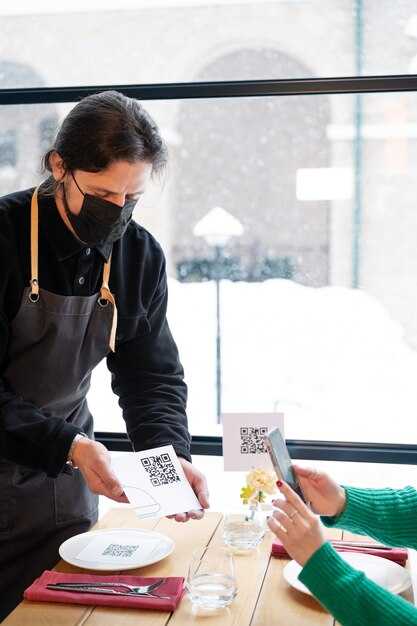
Test with a screen reader on every iteration by pairing automated checks with real users who rely on assistive tech. Start with VoiceOver on macOS/iOS, NVDA on Windows, and TalkBack on Android, and run through core interactions: open the menu, move through items, activate a link, then close the menu. Record task time, success rate, and confusion signals; if issues appear, adjust labels and keyboard shortcuts. Teams that love clean, predictable navigation will like this open/close flow, and it can yield much faster iteration.
In real-use scenarios, design for context. For example, a northwest photography portfolio, a fall arizona tours page, or a willow park with nearby desert trails. Ensure the open state announces clearly, head to the first item, and users can escape with the same gesture used to open. If youre evaluating, note whether users discover the next section after closing the menu and whether the pier or boulders in imagery distract focus. Keep content focused on navigation area and avoid unrelated chatter like hookups.
Use a table to document results, tasks, and recommendations per device. The data helps you compare experiences throughout the project lifecycle.
| Screen Reader | Task | Open State | Focus | Result | Notes |
|---|---|---|---|---|---|
| VoiceOver (macOS/iOS) | Open menu; navigate to “Tours”; activate link | Announced; first item focused | Visible focus ring; logical order | Pass | Aria-expanded updated; landmark usage clear |
| NVDA (Windows) | Open menu; close with Escape; return to toggle | Menu state announced | Focus returns to toggle | Pass | Keyboard shortcut consistent; Escape works |
| TalkBack (Android) | Navigate to next section after closing | Closed state announced | Focus shifts to next heading | Pass | Skip links functional |